Getting the most out of RONIN
Everything you need to know — from first launch to landing your next job.
How RONIN Works
Table of Contents
Getting Started
System Requirements
macOS
- OS: macOS 12+ with Apple Silicon (M2 or later)
- RAM: 16 GB minimum, 24 GB+ recommended
- Storage: ~8 GB for AI models (downloaded on first launch)
- Browser: Google Chrome (required for automation)
Windows
- OS: Windows 10 or later (64-bit)
- RAM: 8 GB minimum, 16 GB+ recommended
- GPU: Any GPU with Vulkan support (recommended for faster AI inference). Works on CPU without GPU
- Storage: ~8 GB for AI models (downloaded on first launch)
- Browser: Google Chrome (required for automation)
Download & Install
macOS
- Download the latest
.dmgfile from roninapply.com - Open the
.dmgand drag RONIN to your Applications folder - Launch RONIN — on first launch, macOS may ask you to confirm opening it (right-click → Open)
- RONIN will prompt you to download the AI models (~8 GB). This is a one-time download
Windows
- Download the latest
.exeinstaller from roninapply.com - Run the installer and follow the setup wizard
- Launch RONIN from the Start menu or desktop shortcut
- RONIN will prompt you to download the AI models (~8 GB). This is a one-time download
First Launch Overview
When you open RONIN, you'll see the sidebar on the left and the main content area. The sidebar contains:
- Dashboard Cmd+1 — Your job pipeline and auto-apply controls
- Scraper Cmd+2 — Discover jobs from LinkedIn, Indeed, and other sites
- Profile Cmd+3 — Your resume, career goals, and auto-fill rules
- Settings Cmd+4 — AI models, browser config, and agent behaviour
At the bottom of the sidebar, you'll see the system status indicators showing whether the Vision, Action, and Brain AI services are online, starting, or offline. These start automatically when needed.
Profile Setup
Your profile is the foundation for everything — job matching, form filling, and scoring. Navigate to the Profile page (Cmd+3) to set it up. Your profile and resume stay on your machine by default.
Personal Information
Fill in your basic details. These are used to auto-fill job application forms:
- Full Name — Used in application forms and to identify your profile
- Email — Contact email for applications
- Phone — Phone number for applications that require it
- Location — Your city/region (used for job matching and form filling)
- LinkedIn — Your LinkedIn profile URL (many applications ask for this)
Resume / CV Upload
Upload your resume in PDF format (max 5 MB). You can either:
- Drag and drop the file onto the upload area
- Click "Browse Files" to select from your computer
Once uploaded, RONIN's AI will analyse your CV and extract a summary. This summary helps the AI understand your skills and experience for better job matching. The AI may also suggest auto-fill rules based on your resume content.
Your CV is saved locally on your machine and is automatically attached when job applications ask for a resume upload.
Career Goal
Describe your ideal job in natural language. The AI uses this to score and rank discovered jobs. Be specific about:
- Your target role (e.g. "Senior Frontend Engineer")
- Preferred company type (e.g. "product-focused startup")
- Work arrangement (e.g. "remote" or specific locations)
- Tech stack preferences (e.g. "React/TypeScript")
- Any other preferences (team size, industry, etc.)
"Senior Frontend Engineer at a product-focused startup, remote, React/TypeScript stack, 150k+ salary, small team, B2B SaaS preferred."
Auto-Fill Rules
Auto-fill rules are question-answer pairs that RONIN uses to fill common application fields. Each rule has:
- Question/Field — The question or field label to match (e.g. "years of experience", "work authorization")
- Answer — The value to fill in (e.g. "8", "Yes, I am authorized to work")
Click the + button to add a new rule. Some rules may be auto-generated from your CV analysis. Common rules to add:
Resume Sections & Templates
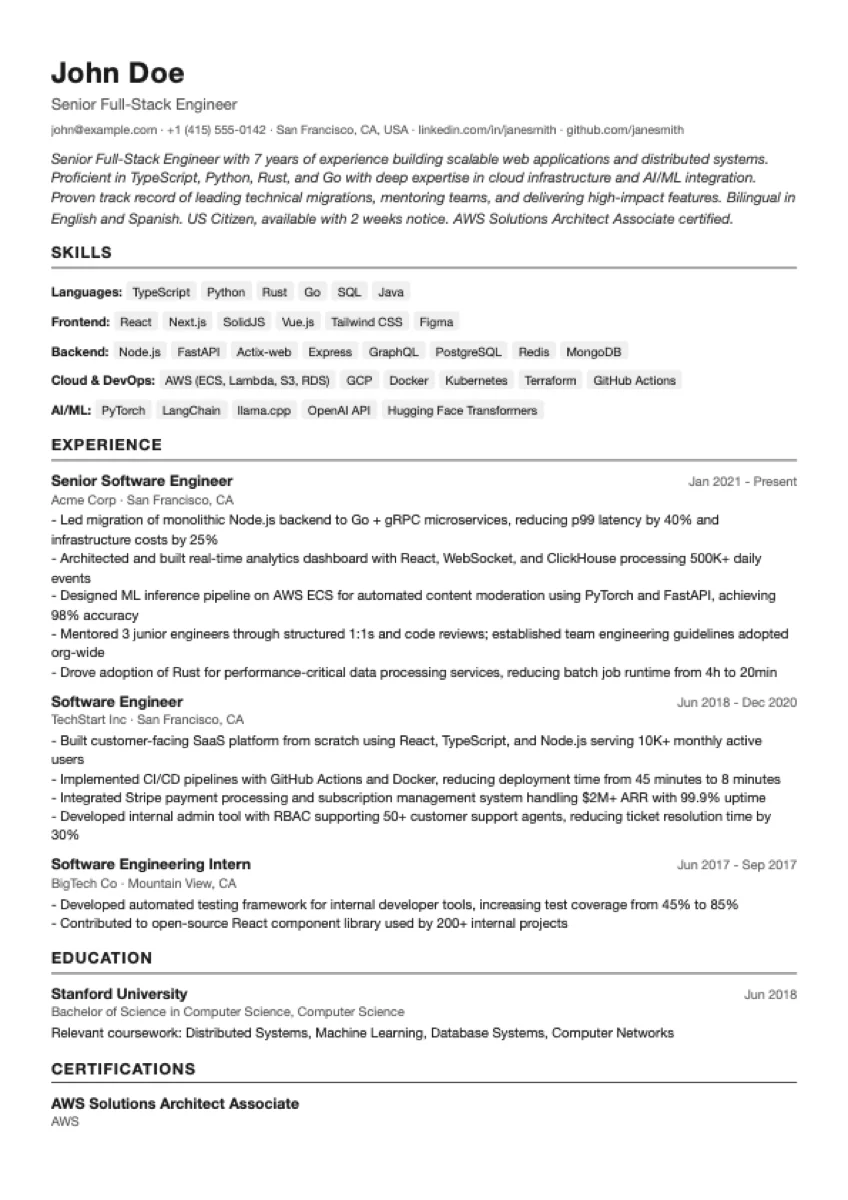
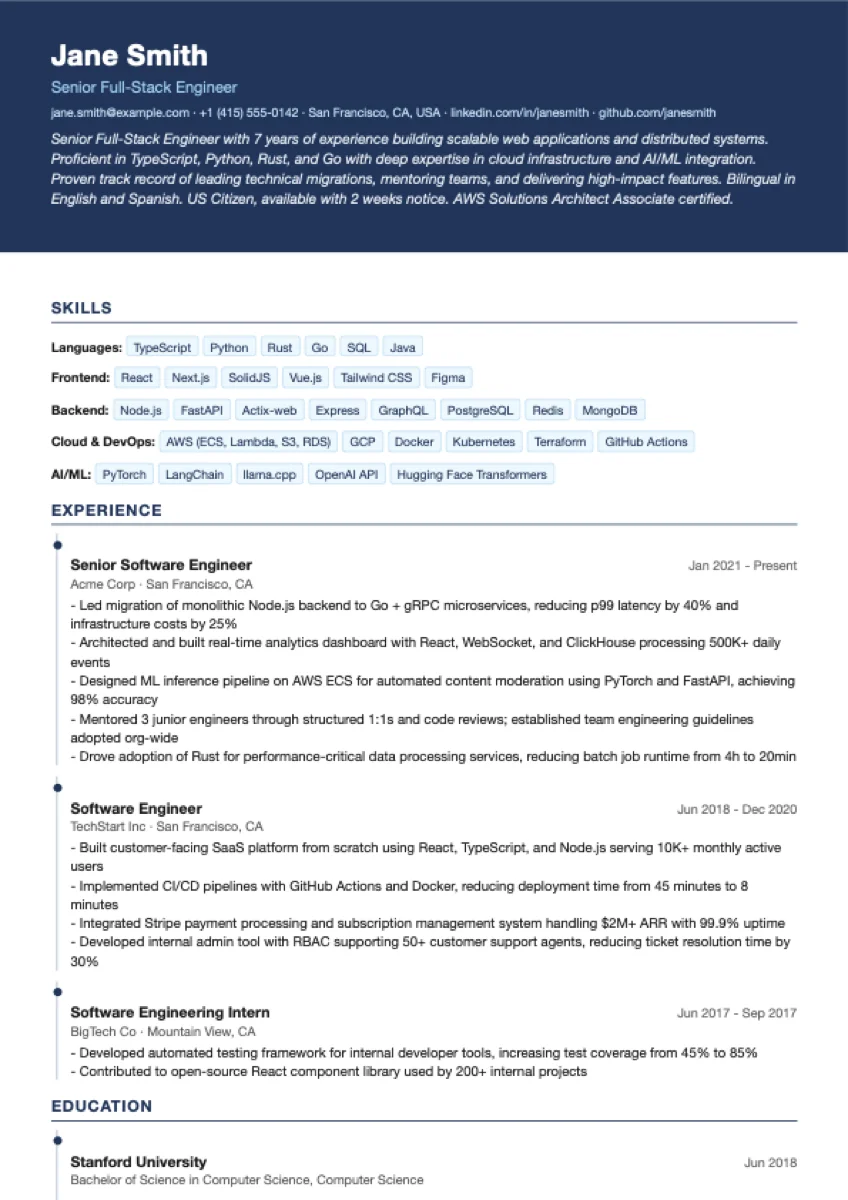
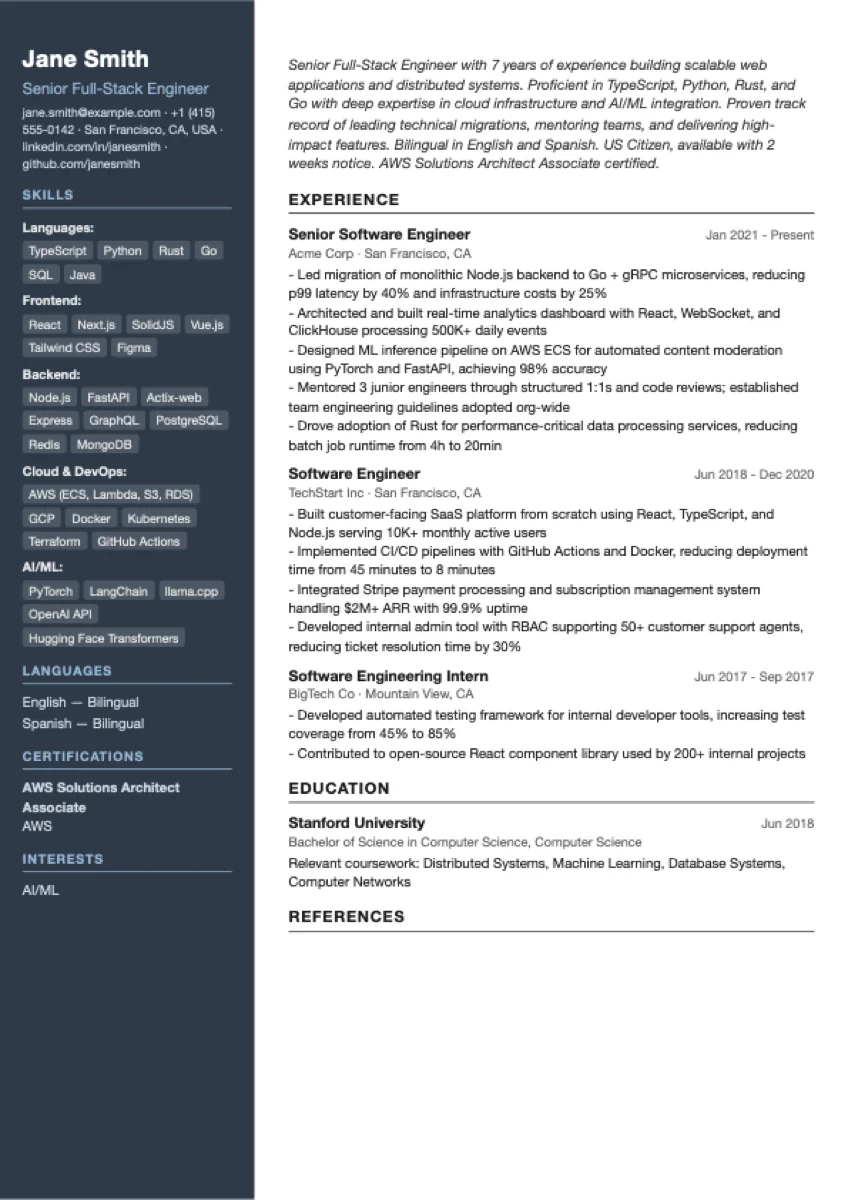
After uploading your CV, click PARSE_RESUME to extract structured sections using AI. RONIN will populate editable fields for:
- Headline & Summary — Your professional title and a brief overview
- Experience — Work history with company, dates, and bullet points
- Education — Degrees, institutions, and relevant coursework
- Skills — Grouped by category (languages, frontend, backend, etc.)
- Projects, Certifications, Languages — And other optional sections
You can edit any extracted data, add or remove entries, then choose from 3 resume templates and click PREVIEW PDF to see the result:
Job Discovery
The Scraper page (Cmd+2) lets you discover jobs from multiple sources using plugin-based scrapers. Each plugin is tailored for a specific job board.
Available Plugins
RONIN comes with built-in plugins for popular job boards. Each plugin uses AI to generate search queries from your profile and extract structured job data automatically.
Discovers recent jobs from LinkedIn search. Extracts up to 75 jobs across multiple pages. Requires you to be signed into LinkedIn in RONIN's browser.
Searches Indeed using AI-generated queries based on your profile. No sign-in required.
Glassdoor, WeWorkRemotely, Remotive, Dice, BuiltIn, Talent.com, and more. New plugins are added regularly.
Scan any job board URL — paste a Greenhouse, Lever, Workday, or any careers page and RONIN's AI will auto-detect and extract job listings.
How Scanning Works
- Select a plugin and click SCAN
- RONIN opens the job board in its built-in browser
- The AI scrolls through listings and collects job URLs
- It navigates to each job page, reads the content, and extracts structured details (title, company, description, salary, tags)
- Extracted jobs are imported into your Dashboard pipeline
During scanning, a real-time log shows each step: navigating pages, scrolling, extracting data, and enriching job details. You can click STOP at any time to halt the scan — jobs already extracted will be kept.
Sign-In for Protected Sites
Some plugins (like LinkedIn) require you to be signed in. To sign in safely:
- Go to Settings → Browser section
- Click "Open Browser for Sign-In"
- A Chrome window opens with RONIN's isolated profile — sign into LinkedIn or other job sites
- Close the browser when done. Your session is saved in RONIN's profile
Custom URL Scanner
The Custom URL plugin lets you scan any job board or company careers page. Just paste the URL and RONIN's AI will:
- Auto-detect job listing links on the page
- Navigate to each job and extract details
- Works with Greenhouse, Lever, Workday, Ashby, and most career pages
https://stripe.com/jobs/search
https://www.cloudflare.com/careers/jobs/
https://www.indeed.com/jobs?q=react+developer&l=remote
Import Jobs via CSV
You can also import jobs directly from the Dashboard using the IMPORT button. Upload a CSV file with job data and RONIN will add them to your pipeline.
Create Custom Plugins
If a job board isn't covered by the built-in plugins, you can create your own. Go to the Scraper page → Create tab. Plugins are defined in JSON and use a step-based workflow.
Each plugin defines a sequence of steps the AI follows to navigate pages, extract job data, and enrich results. Available step types:
- navigate — Open a URL (supports variables like
$query) - extract — Pull structured data from the page using CSS selectors or AI
- for_each — Loop over extracted items and run nested steps
- enrich — Navigate to a detail page and extract additional fields
- to_markdown — Convert the current page to markdown for AI processing
- scroll — Scroll the page to load more content
- click — Click an element by CSS selector
- wait — Pause for a specified duration
- prompt — Ask the Brain AI to process or transform data
- profile_query — Generate a search query from the user's profile
- user_input — Prompt the user for input before running
{
  "id": "my-plugin",
  "name": "My Job Board",
  "description": "Scrapes jobs from example.com",
  "steps": [
    { "type": "navigate", "url": "https://example.com/jobs?q=$query" },
    { "type": "extract", "selector": ".job-card", ... },
    { "type": "for_each", "source": "$extract_step_id", "steps": [...] }
  ]
} Dashboard & Pipeline
The Dashboard (Cmd+1) is your command centre. It shows all discovered jobs, their match scores, and lets you manage the entire application pipeline.
Job Pipeline Statuses
Every job moves through a pipeline with these statuses:
Scoring Jobs
Click the SCORE button in the Dashboard header to batch-score all unscored jobs. The button shows the count of unscored jobs (e.g. "SCORE (12)").
The Brain AI evaluates each job against your profile and career goal, assigning a score from 0-100 based on:
- Skill overlap between your resume and the job requirements
- Seniority level alignment
- Location and remote work preferences
- Career goal compatibility
Jobs scoring above the High Match Score threshold (default: 70, configurable in Settings) are automatically promoted to "High Match" status.
Strong alignment with your 6 years of React/TypeScript experience. Role requires frontend expertise with design systems — matches your component architecture background. Remote position fits your location preference. Seniority level (Senior) aligns with your career trajectory.
Click on any score badge to expand the match reason.
Searching & Filtering
Use the search bar to find jobs by title, company, or tags. Filter by status using the tab buttons:
- ALL — Show all jobs
- HIGH MATCH — Only jobs scored above your threshold
- APPLIED — Jobs you've already applied to
- SAVED — Unsorted/unscored jobs
- FAILED — Applications that encountered errors
Each tab shows a count badge so you can quickly see how many jobs are in each status.
Job Cards
Each job card displays:
- Title & match score — The job title with a colour-coded score badge
- Company & location — With source platform badge (LinkedIn, Indeed, etc.)
- Salary & posting date — If available from the job listing
- Tags — Skills and keywords extracted from the job description
- Action buttons — VIEW (open in browser), AUTO-APPLY, DELETE, or RETRY
Stats Overview
The top of the Dashboard shows four stat cards: Total Jobs, High Match, Applied, and Failed — giving you a quick snapshot of your pipeline health.
Resume Tailoring
RONIN can tailor your resume for each job using AI. On any job card, click the sparkles icon to open the Tailoring Dialog. The AI analyses the job posting against your profile and generates:
- Headline — A tailored job title optimised for ATS (applicant tracking systems), max 80 characters
- Summary — A 2-3 sentence professional summary connecting your experience to the specific job
- Key Skills — 5-8 skills ranked by relevance to both your background and the job posting
Each field is editable and has a Copy to Clipboard button. When you click SAVE, RONIN generates a tailored resume PDF and stores it with the job. You can also click RE-SCORE to update the match score based on your tailored content.
Senior Frontend Engineer
92%Stripe — Remote
Auto-Apply
This is the core of RONIN. The AI opens Chrome, navigates to the job application, reads the page with computer vision, and fills every field automatically.
Starting Auto-Apply
You have two options:
- Single job: Click AUTO-APPLY on any job card in the Dashboard
- Bulk mode: Click the BULK AUTO-APPLY button in the header to auto-apply to all High Match and Saved jobs
Before starting, RONIN checks that your profile is complete (name, email, and CV are required). If anything is missing, you'll see a prompt to fill it in.
What Happens During Auto-Apply
- RONIN launches Chrome with its isolated profile
- The Navigator opens the job page and automatically finds the "Apply" button — handling embedded application forms (Greenhouse, Lever, Workday, etc.), redirects, and multi-step navigation
- If a tailored resume PDF exists for this job, it's loaded automatically; otherwise your default CV is used
- The Vision AI takes a screenshot and identifies all form elements (text fields, dropdowns, checkboxes, file uploads, buttons)
- The Brain AI decides what action to take next based on the form content and your profile
- The Action layer executes the action in Chrome (clicking, typing, selecting, uploading)
- Steps 4-6 repeat until the application is submitted or max steps are reached
The Agent Loop Panel
While auto-apply is running, an AGENT_LOOP panel appears at the top of the Dashboard showing:
- Status indicator — Running (green), Paused (orange), Complete, or Error
- Current job — The job title and company being processed
- Step count — How many actions the agent has taken
- Live log — A scrolling feed of every action (think, screenshot, click, type, scroll, etc.) with colour-coded badges and duration
Pause & Resume
You can pause the agent at any time by clicking the Pause button. This is useful when:
- A CAPTCHA appears that the AI can't solve (RONIN handles simple image CAPTCHAs, but complex ones may need your help)
- You want to manually review or correct a field before the agent continues
- The application has an unusual step that needs human intervention
When you click Resume, a dialog asks you to describe what you did (optional). This helps the AI understand the current state and continue accurately.
How Forms Are Filled
RONIN uses your profile data to fill forms intelligently:
- Text fields — Filled from your personal info or auto-fill rules
- Dropdowns — AI reads all options and selects the best match
- File uploads — Your tailored resume PDF is uploaded if one exists for this job; otherwise your default CV is used
- Checkboxes — Checked based on context (e.g. terms of service, authorization questions)
- Custom questions — Answered using your auto-fill rules or AI-generated responses based on your profile
After Completion
- Success: The job is marked as "Applied" with a timestamp. You'll see it in the APPLIED tab.
- Failure: The job is marked as "Failed" with an error reason displayed on the card. You can click RETRY to try again.
- Stopped: If you manually stop the agent, the job stays in its current status.
Settings
Access settings via Cmd+4. All settings auto-save as you change them.
AI Models
Manage the two AI models that power RONIN:
- Vision Model (~5.5 GB) — Computer vision AI that reads screenshots and identifies UI elements
- Brain Model (~2.5 GB) — Language model that makes decisions, scores jobs, and generates form responses
You can download, delete, or re-download each model individually, or use the "Download All" / "Delete All" buttons. Status indicators show whether each model is ready, not found, or currently downloading with a progress bar. Download progress persists even if you navigate away from the Settings page.
External AI
Instead of running the local Brain model, you can connect RONIN to an external AI provider. This is useful if you want to use a more powerful model or skip downloading the ~2.5 GB Brain model.
- Enable External AI — Toggle to switch from local to external AI
- API Endpoint — The base URL of an OpenAI-compatible API (e.g.
https://api.openai.com/v1) - API Key — Your API key, stored securely in your macOS Keychain
- Model Name — The model ID to use (e.g.
gpt-4o-mini,gpt-4o) - Test Connection — Verifies your endpoint and key work before saving
Works with any OpenAI-compatible provider: OpenAI, Ollama, LM Studio, vLLM, and others. When enabled, the external AI handles scoring, form-filling decisions, and CV analysis. The Vision model still runs locally.
Browser
Chrome configuration and status:
- Chrome status — Shows whether Chrome is detected on your system
- Headless mode — Run Chrome visibly (default) or in the background. Visible mode lets you watch the agent work and intervene if needed.
- CDP Port (default: 9222) — The debug port used to communicate with Chrome. Only change if another app is using this port.
- Chrome Path — Custom Chrome installation path (usually auto-detected)
- Open Browser for Sign-In — Launches Chrome with RONIN's isolated profile so you can sign into job sites safely
Agent Configuration
Controls how the AI agent operates during auto-apply:
- Max Steps (default: 100) — Maximum actions per application. Increase for complex multi-page forms.
- High Match Score (default: 70) — Score threshold for promoting jobs to "High Match" status. Lower for more matches, raise for stricter filtering.
- Step Delay Min/Max (default: 1000-3000ms) — Random delay between actions. Mimics human browsing speed. Higher values are safer but slower.
Display
Appearance preferences for the app, including window zoom level. Adjust to make the interface more comfortable on your display.
Privacy
Toggle anonymous usage analytics on or off. When enabled, RONIN sends basic, non-identifiable usage data (like feature usage counts) to help improve the product. No personal data, job details, or resume content is ever sent.
Feedback
Found a bug or have a feature request? Use the built-in feedback form in Settings to send us a message. Choose a category (General, Bug Report, Feature Request, or Improvement), write your message, and optionally include your email for follow-up.
License & Trial
Free Trial
RONIN includes a free trial with 20 auto-applications — no sign-up or credit card required. The trial lets you test the full auto-apply experience:
- All AI features work (vision, brain, scoring)
- Job discovery and pipeline management are fully available
- After 20 applications, you'll need a license for unlimited auto-apply
The sidebar shows your remaining trial count. The Scraper feature requires a license and is not available during the trial.
Activating a License
- Purchase a license at store.roninapply.com ($49 one-time payment)
- You'll receive a license key via email
- In RONIN, click the license badge in the bottom-left of the sidebar
- Enter your name, email, and the license key
- Click ACTIVATE
What's Included
Free Trial
- ✓ 20 auto-applications
- ✓ On-device AI
- ✓ Job scoring
- ✓ Resume tailoring
- ✓ Pipeline tracking
- ✗ Scraper plugins
Licensed — $49
- ✓ Unlimited auto-applications
- ✓ On-device AI
- ✓ Job scoring
- ✓ Resume tailoring
- ✓ Pipeline tracking
- ✓ Scraper plugins
- ✓ 2 devices
- ✓ 2 years of updates
Deactivating a License
To move your license to a different machine, go to the License page and click DEACTIVATE. This frees up one device slot so you can activate on another Mac.
Tips & Best Practices
Get Better Matches
- Be specific in your career goal — "Senior React Engineer, remote, B2B SaaS, $150k+" works much better than "Software Engineer"
- Keep your CV up to date — The AI extracts skills from your resume for matching
- Adjust the match threshold — Lower the High Match Score in Settings if you're not getting enough matches, or raise it to be more selective
Improve Auto-Apply Success
- Add thorough auto-fill rules — The more rules you define, the more accurately RONIN fills forms. Think about every common application question.
- Keep Chrome visible — Use visible mode (headless off) so you can monitor and pause if the AI gets stuck
- Sign into job sites first — Many sites require authentication. Sign in via the browser button in Settings before running auto-apply.
- Start with single jobs — Test auto-apply on a single job before running bulk mode. This helps you identify any missing auto-fill rules.
- Use pause for CAPTCHAs — If a complex CAPTCHA appears, pause the agent, solve it manually, then resume
Workflow Recommendations
- Daily scan — Run the LinkedIn or other plugins to discover new postings
- Score new jobs — Click SCORE to evaluate them against your profile
- Review high matches — Check the HIGH MATCH tab and remove any you're not interested in
- Tailor top picks — Use the sparkles button on your best matches to generate tailored resume PDFs
- Bulk auto-apply — Run bulk auto-apply on your curated high-match list
- Review results — Check the APPLIED and FAILED tabs. Retry any failed applications.
Keyboard Shortcuts
Troubleshooting
- Models not downloading? — Check your internet connection. Models are ~8 GB total and may take a few minutes.
- Chrome not detected? — Install Google Chrome or set the custom path in Settings → Browser.
- Auto-apply keeps failing? — Make sure you're signed into the job site via the browser button. Some sites block bots — try increasing the step delay.
- AI is slow? — On 16 GB machines, close other heavy apps. The AI models benefit from available RAM.
- Jobs not being found? — Try the Custom URL plugin with a direct link to the company's careers page.
Ready to get started?
Download RONIN and start auto-applying in minutes.